
Picker
Name the windows you need. Keep more than one.
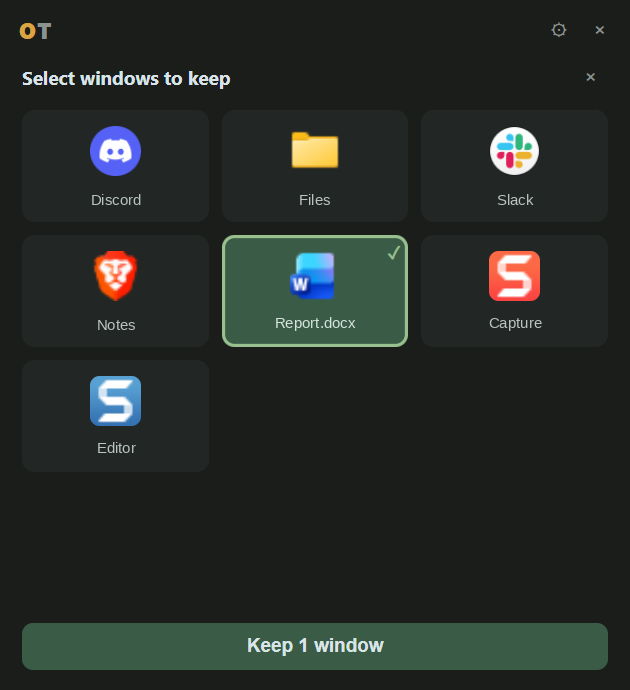
An Alt-Tab style grid with real icons. Click Word. Click Slack if you are on a call. Confirm with Keep. One window stays bright. The others dim.
Windows focus timer
Pick the window you need. The rest of the desk goes dark until Stop or a break. Other apps keep running. You just cannot work in them.
One 12 MB file. No installer. No account. 15 minutes of dimming a day, then $24 once.
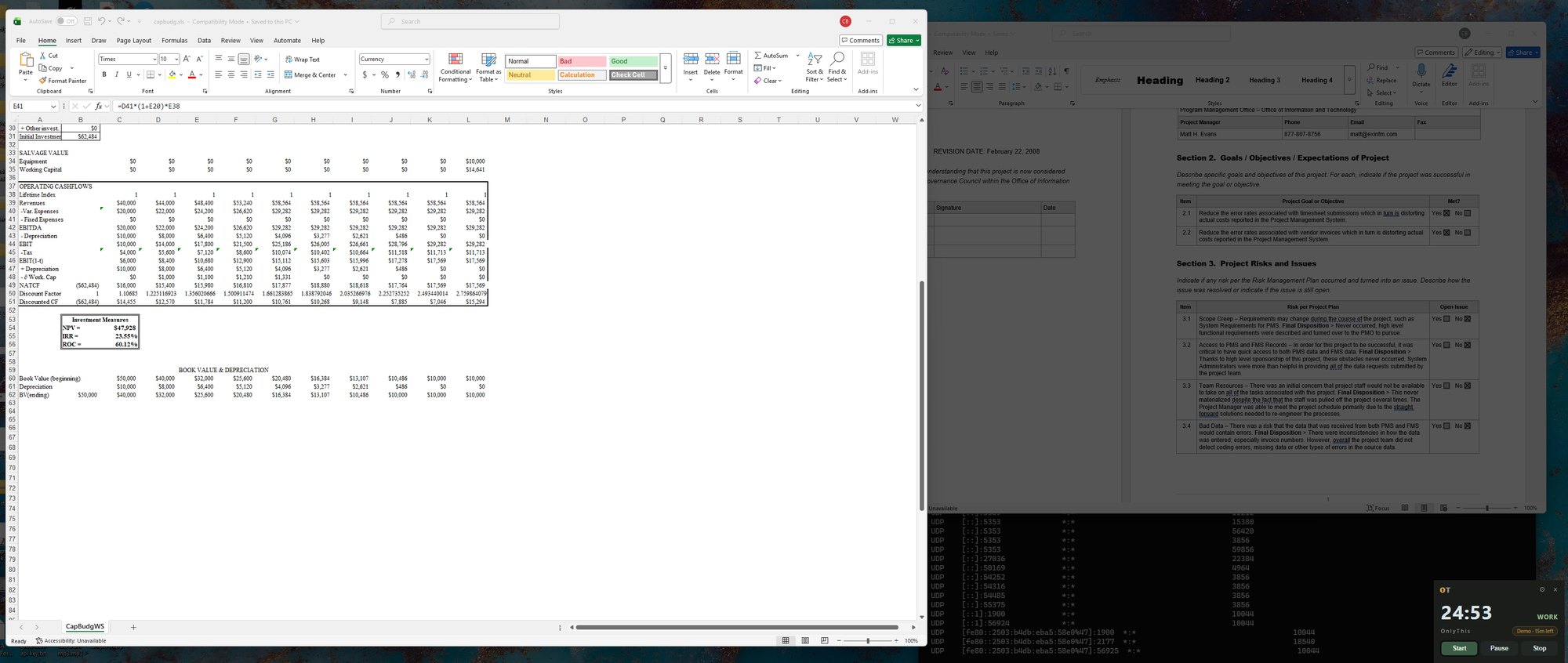
Excel stays lit. Word and the terminal do not.
One app stays lit
The others go dark.
Stay in the window you picked
Stop or a break lifts the smoke.
No network in the app
Nothing to phone home with.
Windows 10 and 11
A desk app. Not a tab.
Timers measure attention. They do not protect it. Blockers ask you to list what to forbid, which is always out of date. Slack is the job tomorrow and the distraction today.
OnlyThis asks for the one thing you need. Everything else dims. You stay in the windows you picked until Stop or a break. Other apps are still there. They are just dark and out of reach.
Built for Windows knowledge work: a document, a spreadsheet, or a single browser window. Not a site blocker. Not a phone app.
Picker
An Alt-Tab style grid with real icons. Click Word. Click Slack if you are on a call. Confirm with Keep. One window stays bright. The others dim.
Timer
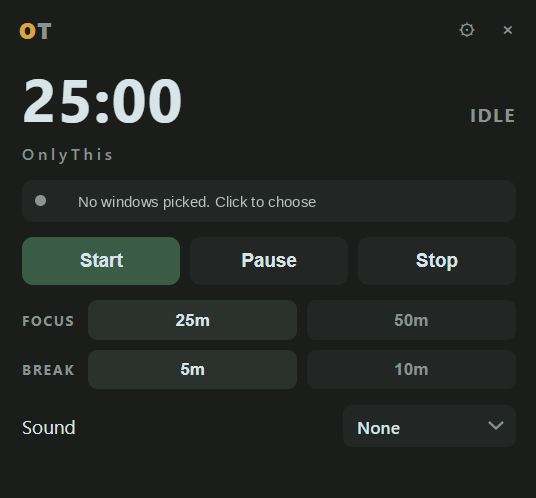
25 or 50 minutes of work. 5 or 10 minute breaks. Type any other length in Settings. Start, pause, and stop sit on the card. Ocean, rain, or brown noise if you want sound that never loops.
Settings
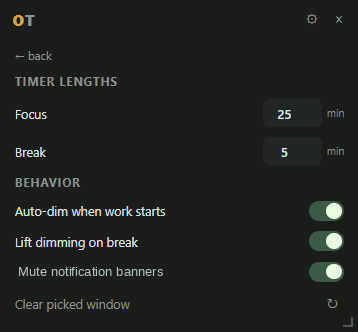
Auto-dim when a work interval starts. Clear the curtain for the break, or leave it up. Optionally mute Windows notification banners for the session, then restore them when you quit.
Click the target row. Choose one window, or several. Double-click to keep just that one.
Press Start, or Space. The desk dims. Pause freezes the clock. Stop clears the dim and resets.
When work ends, the dim lifts for the break. When the break ends, work starts again. Stop whenever you want.
We do not uninstall the apps. They keep running and still get their messages. You cannot work in them until Stop or a break. If you need a lock you cannot undo, use a blocker. If you just need a clock, a free timer is enough.
| OnlyThis | Blockers | Desktop clocks | |
|---|---|---|---|
| Dims other windows | Yes | No | No |
| Use other apps during a block | Not until Stop | No | Yes |
| Hard-blocks websites | No | Yes | No |
| Always-on-top timer | Yes | Sometimes | Yes |
| Phone and multi-device | No | Often | No |
| Account required | No | Often | No |
| Network in the app | No | Yes | Sometimes |
| Price | $24 once | Once or yearly | Free |
Download the file and run it. The same app dims the desk for 15 minutes a day. $24 once removes that cap, on the computers you use, with a 14-day refund. No account. The key stays on your PC.
$0
$24once
Test checkout. No real charge.
No installer, no account, no background service. The file is signed. Windows may still warn the first few times, because the file is new. If it does, choose More info, then Run anyway.
The smoke lifts and the clock pauses. The timer still works. Dimming comes back the next day. A $24 key removes the daily cap. Paste it in Settings and press Activate.
No. Slack and the browser stay installed and keep running. You cannot work in them during a block unless you picked them. Hit Stop if you need out. If you need a lock you cannot undo, use a blocker.
The switcher can still appear. Dimmed apps stay under the smoke, so you cannot land in them. You stay in the windows you picked until Stop or a break.
Yes. A document and the chat you are on a call in, or an editor and the browser you are testing. The last window you pick comes to the front.
Not in this release. Windows 10 and 11 only.
No. The app has no networking code. Settings live on your PC. Picked windows are not saved.
The file is signed. A new download can still trip that warning until Windows has seen it run. Click More info, then Run anyway. The warning is about a new file, not a failed scan.
No. It is a desktop tool for people who lose the thread when other windows stay bright. It is not medical advice.